
You can use an auto clicker on a Chromebook, but the right method depends on where you need to click. Chrome extensions work with web pages, Android auto-clicker apps work with supported Android apps, Linux tools work inside the Linux environment, and ChromeOS has a built-in automatic-click feature for accessibility.
This guide covers the five methods that exist on ChromeOS, the real speed limits behind each one, a console script that needs no install, and the safety checks worth doing first.
What Does "Fast" Actually Mean on a Chromebook?

A fast Chromebook auto clicker is limited by three things: how the browser schedules timers, whether the tab is visible, and how much processing power your device has.
Why Do Browser Timers Cap Your Click Speed?
Browser-based clickers rely on setInterval or setTimeout to repeat an action, and browsers do not always run them at exactly the delay you request. Chrome clamps chained timers to a minimum of 4 milliseconds when the requested delay is shorter and the chain count reaches 5. That theoretical limit is about 250 timer callbacks per second, but an auto clicker will usually produce fewer actual clicks because the page, event handlers, and device still have to process each one.
So a setting of 1 millisecond does not mean 1,000 clicks per second. The browser adjusts it.
Why Does Clicking Slow Down in Background Tabs?
Chrome throttles timers in hidden tabs. Under its normal throttling rules, qualifying timers may be checked about once per second. After a page has been hidden for more than 5 minutes, has been silent for at least 30 seconds, and is not using WebRTC, Chrome can apply intensive throttling and check qualifying chained timers once per minute. A setInterval clicker can therefore slow down significantly when you switch away from the tab.
How Does a Low-End Chromebook CPU Change Click Rate?
Every click triggers page code such as event handlers and layout updates. On a low-spec Chromebook, that work can take longer than the timer interval, so clicks queue up or get skipped, and the page can freeze. Your ceiling is the slower of what the timer allows and what your device can process. Test at a moderate interval first.
Is 1,000 Clicks Per Second Realistic in a Browser? Rarely in a browser. A 1,000-clicks-per-second setting does not mean the browser will actually deliver 1,000 clicks per second. Timer clamping, event processing, device performance, and the target page's own limits can all reduce the real rate. Rate limits can also hit your account, as our guide on the Instagram "try again later" error explains. Treat extreme click-rate claims as marketing, not a measured result.
Which Fast Auto Clicker for Chromebook Method Should You Pick?
ChromeOS gives you five practical routes, each suited to a different situation.
Method | Needs Play Store or Linux? | Works in Chrome tabs? | Realistic speed ceiling | Difficulty | Best for |
|---|---|---|---|---|---|
Chrome extension | No | Yes | Limited by browser timers and page response | Easy | Idle games and repetitive web tasks |
Android auto clicker app | Play Store | Usually no | Set by the app's minimum interval | Medium | Android games on ChromeOS |
Linux tool (xdotool) | Linux | No | Fast, but the Linux app sets the limit | Hard | Developers and testers |
Built-in dwell clicking | Neither | Yes | One click per pointer pause | Easy | Hands-free clicking |
Console script | Neither | Yes, one tab | Limited by timer clamping | Medium | Quick tasks with no install |
For most personal Chromebooks, an extension or the console script is the practical starting point. For Android games, go to Method 2. If a school or employer manages your Chromebook, read the managed device section first.
Method 1: Can You Use a Chrome Extension as an Auto Clicker?

Yes. Extensions are one of the easiest routes because they run in the browser and don't require the Play Store or Linux. They are designed for web pages where the extension has access. When choosing one, check the developer, recent reviews, permissions, update history, and site-access settings before installing it.
How to Set Up a Chrome Extension Auto Clicker
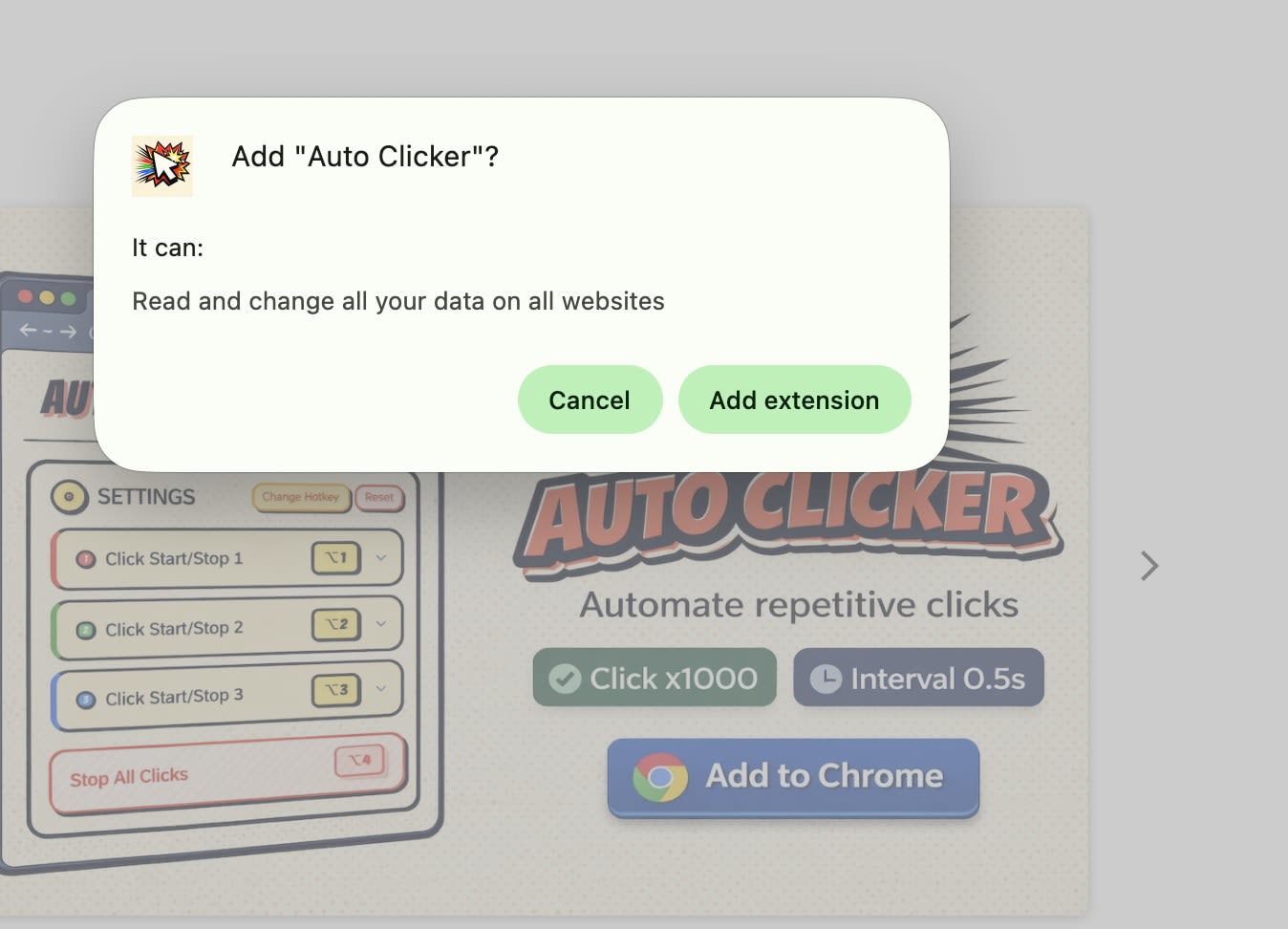
Search "auto clicker" in the Chrome Web Store and check the developer, update date, permissions, and recent reviews.
Select Add to Chrome and confirm the permission prompt.
Pin the extension from the puzzle piece menu.
Set the interval and target, start slowly, and lower the delay in small steps.
Extension Auto Clickers: Pros and Cons
Pros
No Play Store or Linux needed
Quick to install and remove
Adjustable intervals and click limits
Cons
Works only in Chrome
Speed is capped by the timer limits above
Quality and permissions vary
Often blocked on managed devices
Treat any advertised clicks-per-second figure as a setting, not a guarantee.
Method 2: Can You Use an Android Auto Clicker App on a Chromebook?
Yes, if your Chromebook supports Android apps. Google says all Chromebooks launched after 2019 support Android apps, while some older models do too. Availability can also depend on the specific Chromebook and its software support.
How to Set Up an Android Auto Clicker on ChromeOS
Open Settings and look for Apps or Google Play Store. If the Play Store option is unavailable, your Chromebook may not support Android apps or the feature may be disabled by your administrator.
Update ChromeOS, then open the Play Store.
Search Google Play for a reputable auto-clicker app, check its developer, recent reviews, permissions, and ChromeOS compatibility, then grant the required Accessibility permission if you decide to install it.
Place your click points, set the interval, and start it from the floating control panel.
The Main Limitation: It Clicks Android Windows, Not Browser Tabs
These apps generally use Android's Accessibility service to interact with Android apps. They are not a general-purpose way to automate clicks inside Chrome browser tabs, so use a browser-based method for web pages. For a website, use an extension or the console script.
Pros: multiple click points, swipes, a global timer, and saved scripts.
Cons: needs Play Store support, does not control browser tabs, shows ads and in-app purchases, and is often blocked on managed devices.
Method 3: Can You Use xdotool on a Chromebook (Linux)?
Yes, but it is intended for Linux applications running inside ChromeOS's Linux environment. ChromeOS provides a Debian-based Linux environment on supported devices, and managed Chromebooks may restrict access to it. Because Linux apps run inside ChromeOS's Linux environment, this method is not a general-purpose way to control Chrome browser tabs.
How to Set Up xdotool on ChromeOS
Open Settings, expand Advanced, go to Developers, and turn on Linux.
Open Terminal and run
sudo apt update, then runsudo apt install xdotoolIn a supported Linux application, run
xdotool click --repeat 100 --delay 200 1. This sends 100 left-click events with a 200-millisecond delay between repetitions.
Linux Auto Clicker: Pros and Cons
Pros: precise control over click count and delay, scriptable, and free.
Cons: Linux windows only, needs terminal comfort, unavailable on many managed devices, and uses memory on low-spec Chromebooks.
xdotool can send clicks faster than a browser timer allows, but the receiving app sets the real limit. Start at 200 milliseconds and lower it only while the app stays responsive.
Method 4: What Is the ChromeOS "Automatically Click When the Pointer Stops" Setting?
This is ChromeOS's built-in dwell clicking. It clicks when your pointer stops moving, which helps anyone who finds pressing a mouse button or touchpad difficult. It needs no download and works unless an administrator has turned it off.
How to Turn It On
Open Settings and select Accessibility.
Under Mouse and touchpad, turn on Automatically click when the mouse cursor stops.
Adjust the delay before clicking and the ring size if needed.
Google's automatic click help page lists every option, including left click, right click, double click, and scroll actions.
Why It Is Not a Fast Auto Clicker
Automatic clicks perform the selected action when the pointer stops for the configured delay. The feature is designed for accessibility rather than rapid repeated clicking, and its available actions include left-click, right-click, double-click, click-and-drag, and scrolling. Use it for accessibility, and use another method for speed.
Method 5: How to Auto Click in Chrome with a JavaScript Console Script
You can click a page element repeatedly without installing anything by running a short script in Chrome's console. It works on one tab at a time and suits buttons, forms, and browser games built from standard page elements.
How to Run the Script
Right-click the button you want to click and choose Inspect. In DevTools, right-click the highlighted element, choose Copy, then Copy selector.
Press Ctrl+Shift+J to open the Console panel.
Paste the script below, replace
#clicker-buttonwith your copied selector, and press Enter.
javascript
(() => {
  clearInterval(window.clickTimer);
  const target = document.querySelector('#clicker-button');
  if (!target) { console.log('Element not found. Check your selector.'); return; }
  let count = 0;
  window.stopClicker = () => {
    clearInterval(window.clickTimer);
    console.log('Stopped after ' + count + ' clicks');
  };
  window.clickTimer = setInterval(() => { target.click(); count++; }, 200);
})();
Chrome may ask you to type "allow pasting" first. That is a built-in safeguard, so only paste code you wrote or fully understand.
How to Stop It and Change the Speed
Type stopClicker() in the console to stop it, or reload the page. To change the speed, edit the last number, which is the delay in milliseconds. 200 means a click every 200 milliseconds and 1000 means one per second.For chained timers that meet Chrome's clamping conditions, requested delays below 4 milliseconds are clamped to 4 milliseconds. That means lowering the value below 4 milliseconds does not necessarily increase the timer callback rate.
What This Method Cannot Do
The script clicks through the page's code and does not move your pointer. Some sites ignore clicks that were not made by a real mouse, and canvas games often need coordinates instead of a selector.
Can You Use an Auto Clicker on a School or Managed Chromebook?
Often not. On a school or work Chromebook, an administrator sets what you can install. For Android apps, Google's admin documentation says users in a managed organizational unit cannot install Google Play and Android apps by default until an admin allows them.
Feature | Personal Chromebook | Managed Chromebook |
|---|---|---|
Chrome extensions | Allowed | Often blocked or limited to an approved list |
Android apps | Allowed on supported models | Blocked by default until an admin allows them |
Linux | Allowed on supported models | Frequently disabled |
Console script | Works | Can be restricted if developer tools are off |
Built-in automatic clicks | Available | Usually available, but admin-controlled |
If a method is blocked, that is a deliberate setting. Do not look for ways around it. Ask your IT team whether an approved option exists, especially for accessibility. Using an auto clicker on graded work or testing platforms can also count as cheating under most school policies.
How to Use a Chromebook Auto Clicker Safely
Auto clickers ask for broad browser access, so check them before you install.
Permission Red Flags to Check Before Installing
Compare each permission warning against the job. A clicker rarely needs these:
Read your browsing history: not needed to click a button.
Manage your downloads: not needed for clicking.
Capture content of your screen: a serious mismatch.
Read and change all your data on all websites: common, but it lets the extension see everything you view.
After installing, openchrome://extensions, select Details, and set Site access to "On click" or "On specific sites."
How to Spot Fake or Bloated Extensions
Search results for "auto clicker" are crowded with near-identical listings. Check that the developer has a real website and privacy policy, read recent reviews instead of the average rating, and confirm the update date is recent. Avoid listings that add unrelated features like changing your search engine. Shady tools follow the same pattern in other niches, as I found when I tested anonymous Instagram story viewers.
Can Auto Clicking Get You Banned?
Yes. Many games and websites prohibit automated input, and platforms can restrict or suspend accounts that show repeated automated actions. Single-player idle games carry less risk, but read the terms first and never run a clicker on an account you cannot afford to lose.
When Does Fast Clicking on a Chromebook Actually Help?
Idle and clicker games. In a browser game where one button earns points, an extension or the console script handles the repetition while you do something else. Use a moderate interval and check the game's terms.
Repetitive form testing. If you test websites, you might submit the same form dozens of times on a staging site to check validation. The console script can target the submit button and stop after a set count. Never run it against a live site you do not own.
Accessibility needs. If pressing a touchpad button is painful, the built-in automatic clicks setting lets you read and scroll a long article using only pointer movement.
Auto Clicker Not Working on Chromebook? Causes and Fixes
Symptom | Likely cause | Fix |
|---|---|---|
Clicker stops when you switch tabs | Chrome throttles timers in hidden tabs | Keep the tab visible, or move it into its own window |
Clicks do nothing on a canvas game | A canvas has no separate elements to target | Use an extension that clicks at screen coordinates |
Clicks do nothing inside an iframe | The script runs in the main page, not the frame | In the Console, switch the context dropdown from "top" to the frame and rerun |
Clicker stops after a page reload | Reloading resets the page and removes console scripts | Start the extension again, or re-paste the script |
Page freezes or lags | The device cannot process each click in time | Raise the interval and close extra tabs. Our guide on why ChatGPT gets slow covers the same tab and extension cleanup |
If none of these fit, disable other extensions one at a time, since two automation tools can conflict.
Which Method Should You Choose?
The best fast auto clicker for Chromebook depends on where you need to click and who controls the device.
Website, personal Chromebook: use a Chrome extension, or the console script if you would rather install nothing.
Android game: use an Android auto clicker app, if your model supports Google Play.
Linux apps: use xdotool in the Linux container.
Clicking is physically difficult: turn on the built-in automatic clicks setting.
School or work Chromebook: stick to what your administrator allows and ask IT first.
Whichever you pick, start at a moderate interval, keep the tab visible, and lower the delay only while the page stays responsive.
Frequently Asked Questions
Can you use an auto clicker on a Chromebook?
Yes. You can use a Chrome extension, an Android app from Google Play, a Linux tool like xdotool, or a console script. Match the method to where you need to click.
Is there a Chromebook auto clicker that works without an extension?
Yes. The console script needs no installation and works on one tab. ChromeOS also has a built-in automatic clicks setting, but it clicks once per pointer pause and is not a rapid clicker.
How fast can an auto clicker click on a Chromebook?
In a browser, Chrome clamps chained timers to 4 milliseconds, about 250 ticks per second at most. Real rates are lower because the page and your processor must handle each click.
Can I get banned for using an auto clicker in a game?
Yes, if the game's terms prohibit automated input. Platforms can detect repeated automated actions and suspend accounts, so read the terms first.
Why does my auto clicker stop when I switch tabs?
Chrome throttles timers in hidden tabs to about once per second, and after roughly 5 minutes hidden, it can check them once per minute. Keep the tab visible or in its own window.