
หากคุณเคยพิมพ์โพสต์บน Facebook กดปุ่มย้อนกลับ จากนั้นใช้เวลาสิบนาทีในการพยายามคิดว่าโพสต์นั้นไปอยู่ที่ไหน คุณไม่ได้อยู่คนเดียว Facebook จะบันทึกฉบับร่างโดยอัตโนมัติในบางสถานการณ์ แต่การค้นหานั้นไม่ได้ตรงไปตรงมาเสมอไป และตำแหน่งจะเปลี่ยนไปขึ้นอยู่กับว่าคุณใช้ iPhone อุปกรณ์ Android หรือเบราว์เซอร์เดสก์ท็อป คู่มือนี้จะแจกแจงรายละเอียดอย่างชัดเจนว่าฉบับร่างของคุณอยู่ที่ใดบนทุกแพลตฟอร์ม เพื่อให้คุณสามารถกลับไปเผยแพร่ได้โดยไม่เกิดความยุ่งยาก
Facebook จัดการกับร่างเบื้องหลังอย่างไร
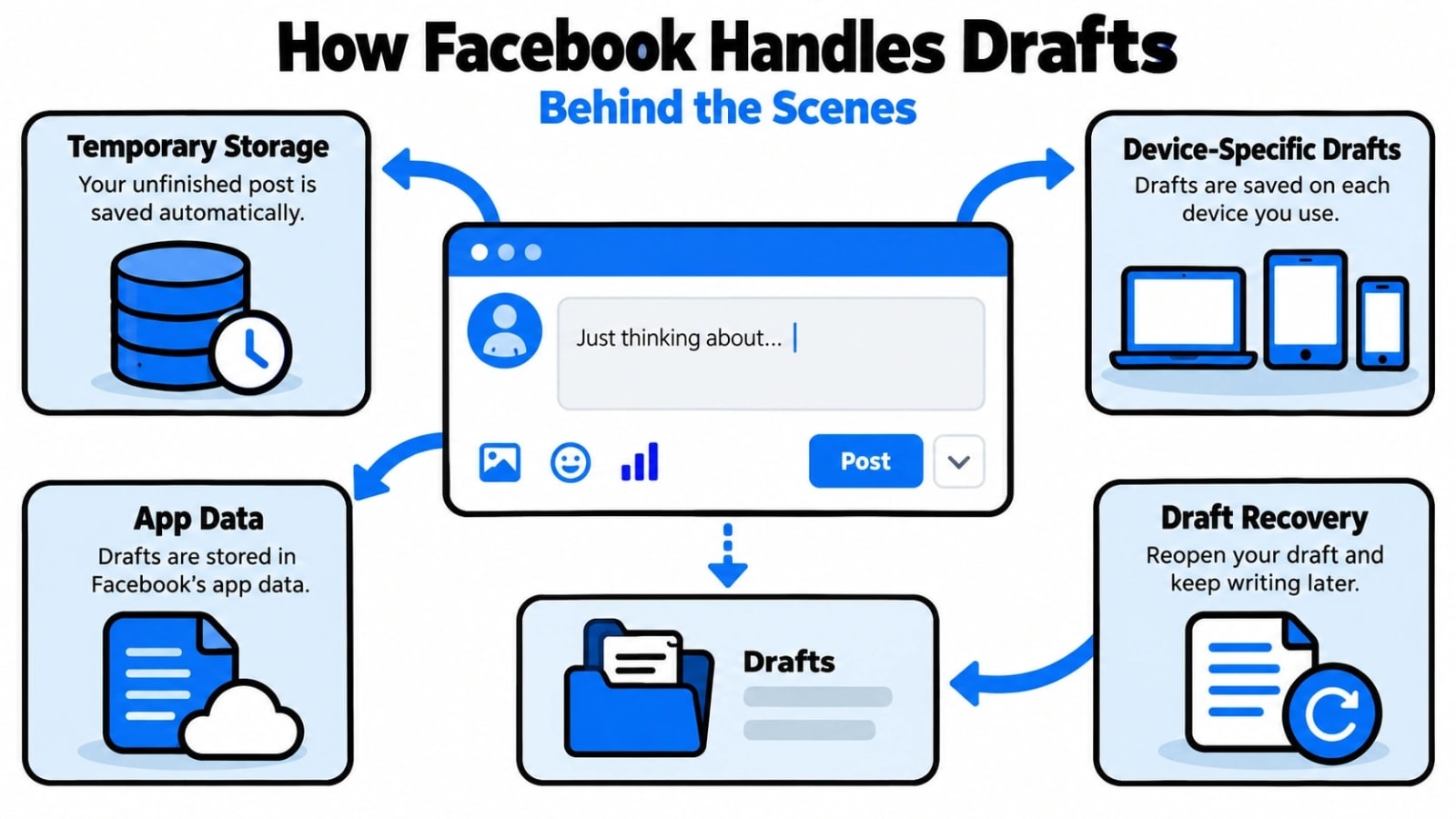
ก่อนที่จะข้ามไปยังขั้นตอนสำหรับอุปกรณ์แต่ละเครื่อง ควรทำความเข้าใจว่า Facebook จัดการร่างจดหมายอย่างไร เนื่องจากระบบไม่ง่ายเหมือนโฟลเดอร์ "ร่างจดหมาย" เฉพาะที่คุณสามารถคลิกเข้าไปได้ตลอดเวลา
Facebook จะไม่บันทึกทุกโพสต์ที่ยังสร้างไม่เสร็จเป็นฉบับร่างโดยอัตโนมัติ แพลตฟอร์มจะแจ้งให้คุณบันทึกฉบับร่างเฉพาะเมื่อคุณเริ่มเขียนโพสต์แล้วพยายามออกจากโพสต์นั้น ในขณะนั้น ป๊อปอัปจะปรากฏขึ้นเพื่อถามว่าคุณต้องการทิ้งโพสต์หรือบันทึกเป็นฉบับร่าง หากคุณแตะหรือคลิก "บันทึกฉบับร่าง" Facebook จะจัดเก็บข้อความและสื่อที่แนบมาในบางครั้งเพื่อให้ค���ณกลับมาดูในภายหลัง
มีข้อจำกัดที่สำคัญบางประการที่ควรทราบล่วงหน้า:
- ฉบับร่างจะเชื่อมโยงกับบัญชีและเซสชันอุปกรณ์ที่คุณบันทึกไว้ ฉบับร่างที่บันทึกไว้ใน iPhone ของคุณอาจไม่ปรากฏบนเบราว์เซอร์เดสก์ท็อปของคุณเสมอไป
- Facebook ไม่รับประกันการจัดเก็บร่างจดหมายอย่างไม่มีกำหนด สิ่งเหล่านี้สามารถหายไปได้หลังจากไม่มีการใช้งานช่วงระยะเวลาหนึ่งหรือหลังจากการอัปเดตแอป
- ร่างสำหรับโพสต์ส่วนตัว โพสต์บนเพจ Facebook และโพสต์กลุ่มจะถูกจัดเก็บไว้ในตำแหน่งที่แตกต่างกันภายในแอพและเว็บไซต์
- แอพ Facebook บนมือถือและเวอร์ชันเดสก์ท็อปมีเส้นทางการนำทางที่แตกต่างกันสำหรับการเข้าถึงฉบับร่างที่บันทึกไว้
การทำความเข้าใจความแตกต่างเหล่านี้ช่วยให้คุณประหยัดเวลาในการค้นหาได้มาก ข่าวดีก็คือเมื่อคุณรู้ว่าจะต้องค้นหาแต่ละสถานการณ์ได้ที่ไหน การค้นหาฉบับร่างนั้นใช้เวลาเพียงไม่กี่คลิกหรือคลิกเท่านั้น
เพื่อทำความเข้าใจว่าร่างจดหมายของฉันอยู่ที่ไหนบน Facebook iOS, Android และพีซี ช่วยเปรียบเทียบสิ่งที่คุณเห็นในข้อมูลและการดำเนินการที่คุณต้องดำเนินการต่อไป
ค้นหา Facebook Draft ของคุณบน iPhone (iOS)
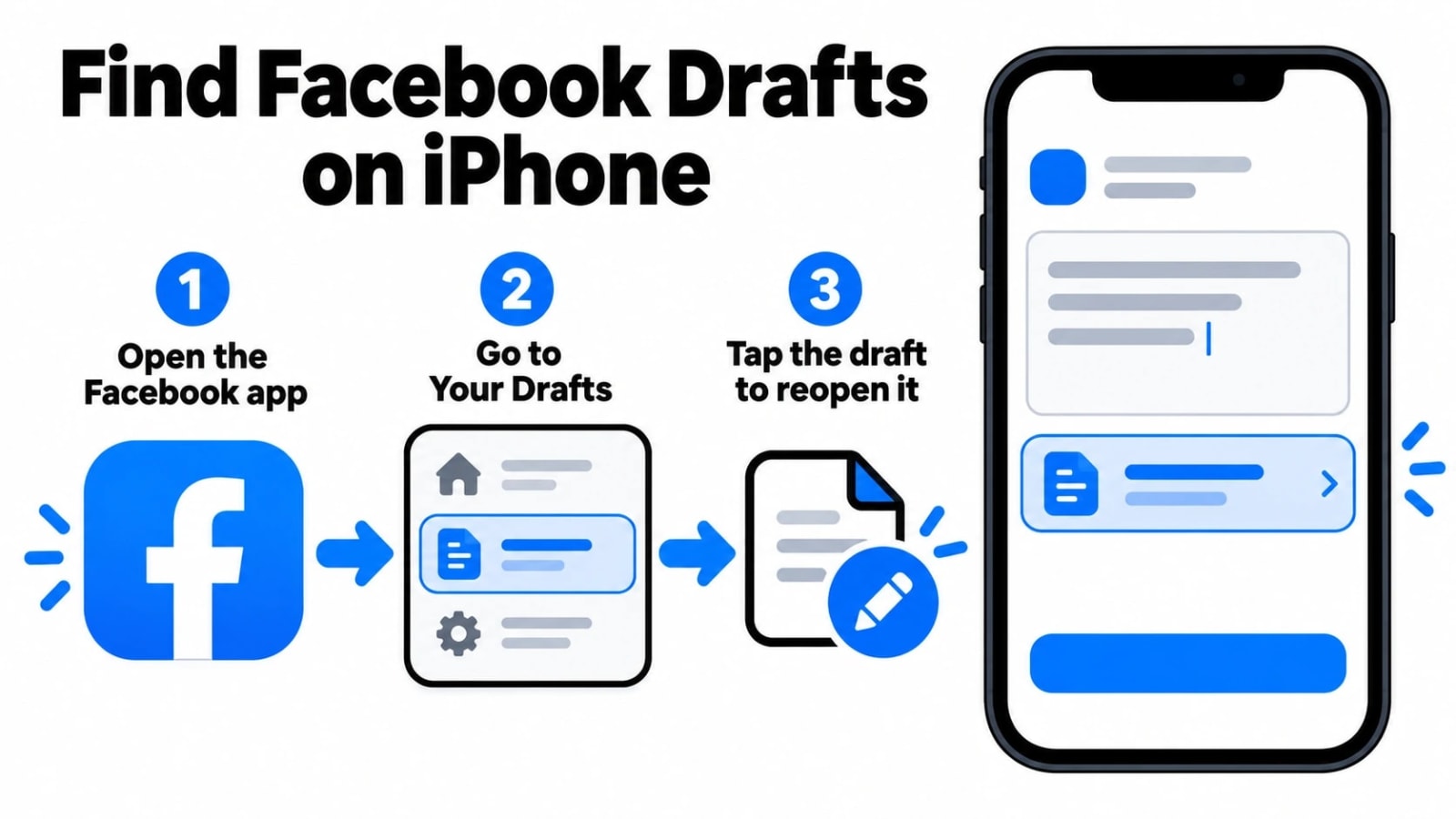
แอพ Facebook iOS จัดการฉบับร่างแตกต่างจากประสบการณ์บนเดสก์ท็อปเล็กน้อย และขั้นตอนที่แน่นอนอาจแตกต่างกันเล็กน้อยขึ้นอยู่กับเวอร์ชันของแอพที่คุณติดตั้ง ขั้นตอนด้านล่างนี้แสดงถึงแอพ Facebook เวอร์ชันล่าสุดที่มีอยู่ใน App Store
ค้นหาร่างจดหมายสำหรับโพสต์ส่วนตัวบน iPhone
หากคุณบันทึกฉบับร่างของโพสต์ส่วนตัวขณะใช้แอพ Facebook บน iPhone ต่อไปนี้เป็นวิธีเรียกคืน:
- เปิดแอพ Facebook บน iPhone ของคุณและตรวจสอบให้แน่ใจว่าคุณได้ลงชื่อเข้าใช้บัญชีที่ถูกต้อง
- แตะ "คุณคิดอะไรอยู่" ที่ด้านบนของฟีดข่าวเพื่อเปิดผู้แต่งโพสต์
- พอผู้แต่งเปิดขึ้นมา ให้มองหาตัวเลือก "Drafts" ที่ปรากฏบริเวณด้านบนของหน้าจอหรือเป็นข้อความแจ้งก่อนเริ่มพิมพ์ Facebook จะแสดงฉบับร่างที่บันทึกไว้ซึ่งเชื่อมโยงกับบัญชีของคุณที่นี่
- แตะแบบร่างเพื่อโหลดลงในผู้เรียบเรียง แก้ไขตามต้องการ จากนั้นเผยแพร่หรือบันทึกอีกครั้ง
หากคุณไม่เห็นข้อความแจ้งแบบร่างปรากฏขึ้นโดยอัตโนมัติ อาจเป็นไปได้ว่าแบบร่างไม่ได้รับการบันทึกหรือหมดอายุแล้ว ในกรณีดังกล่าว ให้ตรวจสอบว่าโพสต์นั้นอาจถูกบันทึกไว้ในเพจหรือกลุ่ม แทนที่จะเป็นโปรไฟล์ส่วนตัวของคุณหรือไม่
ค้นหาร่างสำหรับโพสต์เพจ Facebook บน iPhone
แบบร่างเพจบน iOS เป็นไปตามเส้นทางที่แตกต่างไปจากเดิมอย่างสิ้นเชิง หากต้องการค้นหา:
- เปิดแอพ Facebook และนำทางไปยังเพจ Facebook ของคุณโดยแตะที่ไอคอนโปรไฟล์ของคุณ และเลือกเพจจากรายการโปรไฟล์ของคุณ
- แตะตัวเลือก "เครื่องมือการเผยแพร่" จากเมนูเพจ ขึ้นอยู่กับเวอร์ชันแอปของคุณ สิ่งนี้อาจปรากฏใต้เมนูหลักของเพจหรือใต้ส่วน "แดชบอร์ดมืออาชีพ"
- ภายในเครื่องมือการเผยแพร่ ให้มองหาส่วน "ร่าง" ที่อยู่ในหมวดหมู่โพสต์ แบบร่างทั้งหมดที่บันทึกไว้สำหรับเพจนั้นจะปรากฏที่นี่
- แตะแบบร่างเพื่อเปิด แก้ไข และกำหนดเวลาหรือเผยแพร่โดยตรงจากผู้แต่ง
สิ่งหนึ่งที่ควรจำไว้ก็คือ เครื่องมือเผยแพร่จะมีให้ใช้งานเฉพาะกับเพจที่คุณมีบทบาทเป็นผู้ดูแลระบบหรือผู้แก้ไขเท่านั้น หากคุณจัดการหลายเพจ ตรวจสอบให้แน่ใจว่าคุณกำลังดูเพจที่ถูกต้องก่อนที่จะค้นหาแบบร่าง เนื่องจากแต่ละเพจจะรักษารายการแบบร่างแยกกัน
ค้นหา Facebook Draft ของคุณบน Android
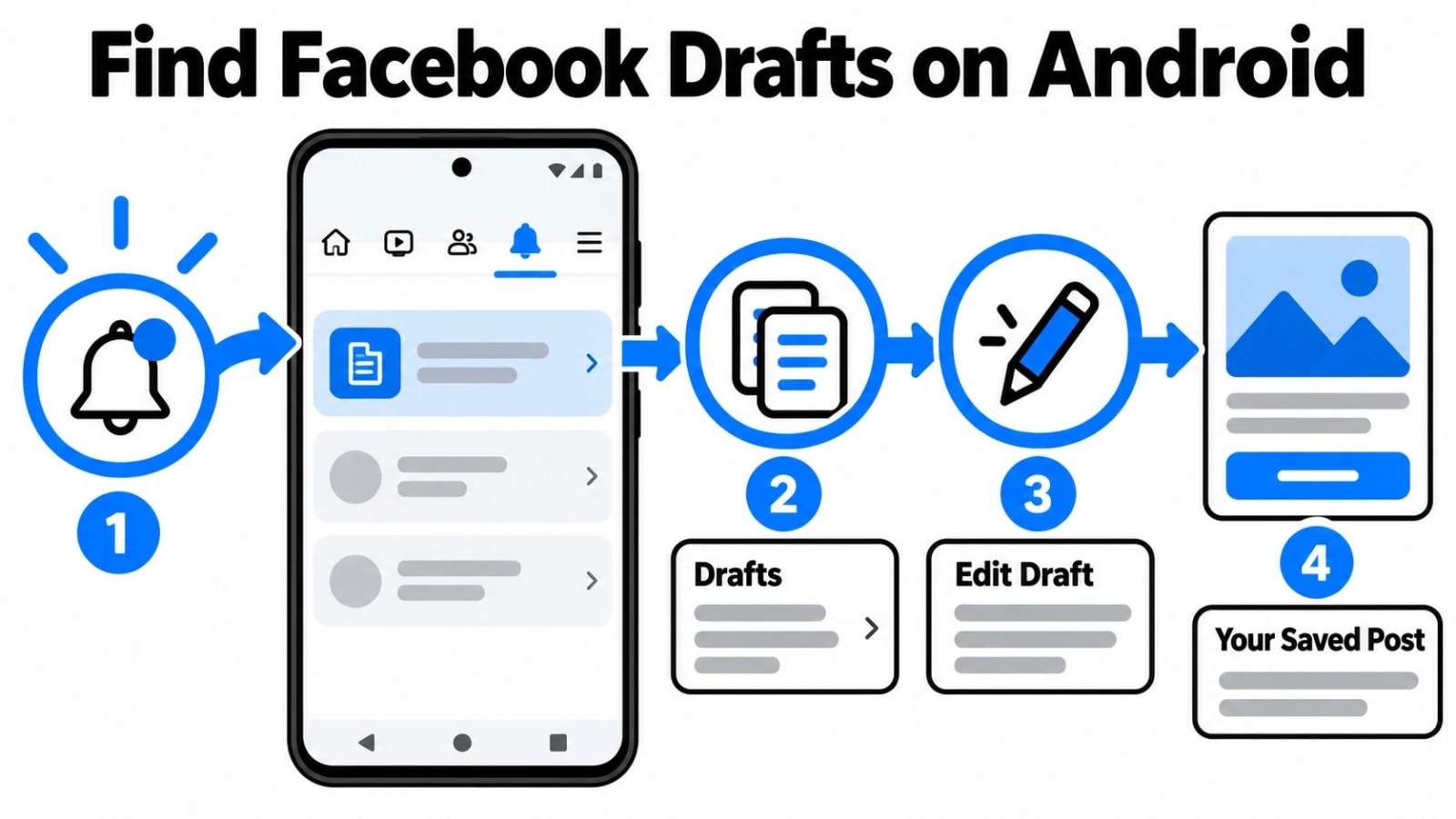
ผู้ใช้ Android ติดตามเส้นทางที่แตกต่างจากผู้ใช้ iOS เล็กน้อยเมื่อติดตามร่างที่บันทึกไว้ แต่กระบวนการยังคงตรงไปตรงมาเมื่อคุณรู้ว่าจะต้องดูที่ไหน เปิดแอพ Facebook บนอุปกรณ์ Android ของคุณแล้วแตะข้อความ "คุณคิดอะไรอยู่" ที่ด้านบนของฟีดข่าวของคุณ หาก Facebook บันทึกฉบับร่างในครั้งล่าสุดที่คุณเริ่มโพสต์และออกไปโดยไม่เผยแพร่ แบนเนอร์หรือข้อความเตือนขนาดเล็กจะปรากฏขึ้นที่ด้านบนของหน้าต่างเขียนโพสต์ โดยทั่วไปแบนเนอร์นี้จะอ่านว่า "คุณมีโพสต์ที่ยังไม่ได้บันทึก" หรือแสดงตัวอย่างข้อความร่างของคุณ เพื่อให้คุณมีตัวเลือกในการแก้ไขต่อหรือยกเลิกทั���งหมด
สิ่งหนึ่งที่ผู้ใช้ Android ควรจำไว้ก็คือพฤติกรรมแบบร่างของ Facebook อาจแตกต่างกันเล็กน้อย ขึ้นอยู่กับเวอร์ชันของแอปที่ติดตั้งบนอุปกรณ์ของคุณ แอป Android เวอร์ชันเก่าบางครั้งจะบันทึกฉบับร่างได้เข้มงวดมากขึ้น ในขณะที่การอัปเดตที่ใหม่กว่าได้ปรับเปลี่ยนความโดดเด่นของข้อความแจ้งฉบับร่าง หากคุณไม่เห็นแบนเนอร์ฉบับร่างเมื่อคุณเปิดผู้แต่ง ให้ลองออกจากฟีดแล้วกลับมา จากนั้นแตะผู้แต่งอีกครั้ง ฉบับร่างบน Android จะเชื่อมโยงกับเซสชันที่คุณใช้งานอยู่ ดังนั้นการออกจากระบบและกลับเข้าสู่ระบบใหม่ หรือบังคับปิดแอป อาจทำให้ฉบับร่างที่ยังไม่ได้บัน��ึกหายไปโดยสิ้นเชิง
ต่อไปนี้เป็นขั้นตอนสำคัญในการค้นหาและกู้คืนฉบับร่างบน Android:
- เปิดแอพ Facebook แล้วแตะ "คุณคิดอะไรอยู่" บนฟีดข่าวของคุณ
- มองหาแบนเนอร์ฉบับร่างหรือข้อความที่กรอกไว้ล่วงหน้าในตัวเขียนโพสต์
- แตะ "ดำเนินการต่อ" หรือ "แก้ไข" บนข้อความร่างเพื่อดำเนินการโพสต์ของคุณต่อ
- แตะ "ทิ้ง" หากคุณต้องการลบฉบับร่างที่บันทึกไว้และเริ่มต้นใหม่
- หลีกเลี่ยงการบังคับปิดแอปหรือออกจากระบบก่อนบันทึก เนื่องจากอาจลบฉบับร่างอย่างถาวร
ค้นหา Facebook Draft ของคุณบนพีซี (เบราว์เซอร์เดสก์ท็อป)
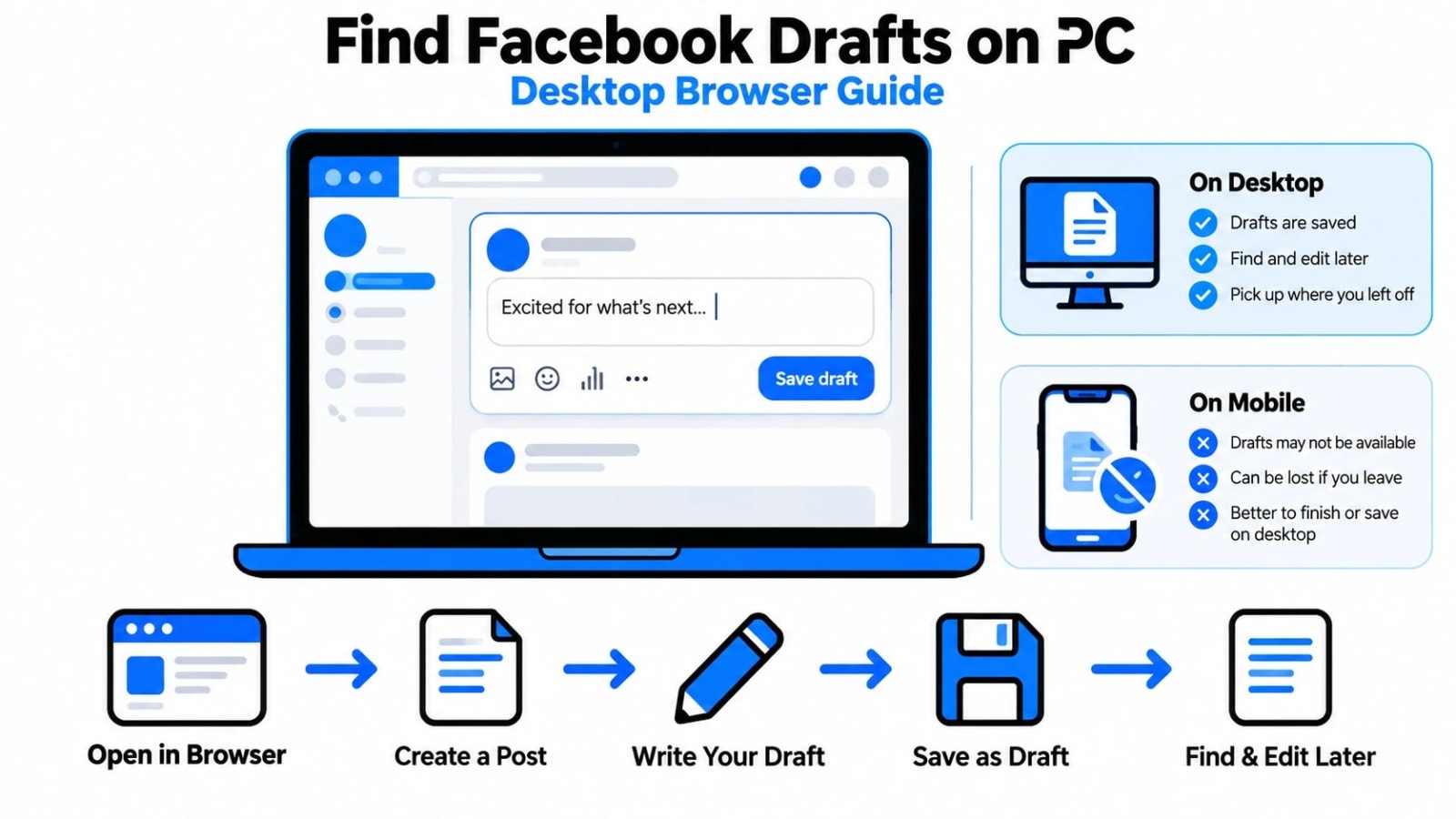
หากคุณใช้ Facebook ผ่านเบราว์เซอร์เดสก์ท็อปหรือแล็ปท็อปเป็นหลัก ประสบการณ์แบบร่างจะทำงานแตกต่างออกไปเล็กน้อยเมื่อเทียบกับแอปบนมือถือ เมื่อคุณเริ่มพิมพ์โพสต์ในส่วน "What's on your mind?" บนฟีดหน้าแรกของคุณ จากนั้นปิดผู้แต่งโดยไม่โพสต์ Facebook อาจเก็บข้อความนั้นไว้ในช่วงเวลาสั้นๆ ภายในเซสชันการเรียกดูเดียวกัน หากต้องการตรวจสอบฉบับร่างบนเดสก์ท็อป เพียงคลิกปุ่ม "คุณคิดอะไรอยู่" พร้อมท์อีกครั้ง หากจัดเก็บฉบับร่างไว้ ข้อความที่คุณพิมพ์ก่อนหน้านี้มักจะปรากฏขึ้นอีกครั้งในกล่องผู้แต่งโดยอัตโนมัติ ช่วยให้คุณสามารถดำเนินการต่อจากจุดที่คุณค้างไว้ได้
อย่างไรก็ตาม แบบร่างบนเดสก์ท็อปบน Facebook มีความน่าเชื่อถือน้อยกว่าบนมือถือมาก เนื่องจากเวอร์ชันเดสก์ท็อปต้องใช้หน่วยความจำเซสชันของเบราว์เซอร์มากกว่าที่เก็บข้อมูลในเครื่องของแอป การปิดแท็บเบราว์เซอร์ รีเฟรชหน้า หรือการสลับเบราว์เซอร์ โดยทั่วไปจะลบร่างจดหมายที่ยังไม่ได้บันทึกโดยไม่มีการเตือน นี่เป็นข้อจำกัดที่น่าสังเกตซึ่งทำให้ผู้ใช้จำนวนมากไม่ระวัง หากคุณเขียนโพสต์ที่ยาวขึ้นจากเดสก์ท็อปเป็นประจำ การคัดลอกข้อความของคุณลงในเอกสารหรือแอปพลิเคชันบันทึกย่อแยกต่างหากเพื่อสำรองข้อมูลก่อนที่คุณจะพยายามเผยแพร่ถือเ��็นนิสัยที่ชาญฉลาด ขั้นตอนพิเศษนั้นสามารถช่วยคุณจากการสูญเสียโพสต์ที่เขียนอย่างระมัดระวัง
สำหรับผู้จัดการเพจและผู้ใช้บัญชีธุรกิจบนเดสก์ท็อป มีตัวเลือกเพิ่มเติมอีกหนึ่งตัวเลือกที่ควรทราบ เมื่อกำหนดเวลาหรือร่างโพสต์ผ่าน Creator Studio ของ Facebook หรือ Meta Business Suite ระบบร่างจะมีโครงสร้างที่มากกว่ามาก เครื่องมือเหล่านี้มีโฟลเดอร์ "ฉบับร่าง" เฉพาะซึ่งจัดเก็บโพสต์ที่บันทึกเป็นฉบับร่างอย่างชัดเจน โดยแยกจากฉบับร่างตามเซสชันที่ไม่เป็นทางการซึ่งพบได้ในโปรแกรมเขียนฟีดหลัก หากต้องการเข้าถึงสิ่งเหล่านี้ ให้ไปที่ Meta Business Suite เลือกเพจของคุณ คลิก "Planner" หรือ "Posts" จากนั้นมองหาแท็บ "Drafts" ในตัวเลือกตัวกรอง
- คลิก "คุณคิดอะไรอยู่" บนฟีดเดสก์ท็อปเพื่อตรวจสอบร่างที่จัดเก็บเซสชัน
- หลีกเลี่ยงการรีเฟรชหรือปิดแท็บก่อนเผยแพร่เพื่อป้องกันการสูญเสียฉบับร่าง
- ใช้ Meta Business Suite หรือ Creator Studio เพื่อร่างโพสต์เพจที่เชื่อถือได้และบันทึกไว้
- คัดลอกโพสต์ขนาดยาวไปยังเอกสารในเครื่องเพื่อใช้เป็นข้อมูลสำรองเมื่อเขียนจาก browser.r
เคียงข้างกัน: วิธีการทำงานของร่างจดหมายใน iOS, Android และพีซี
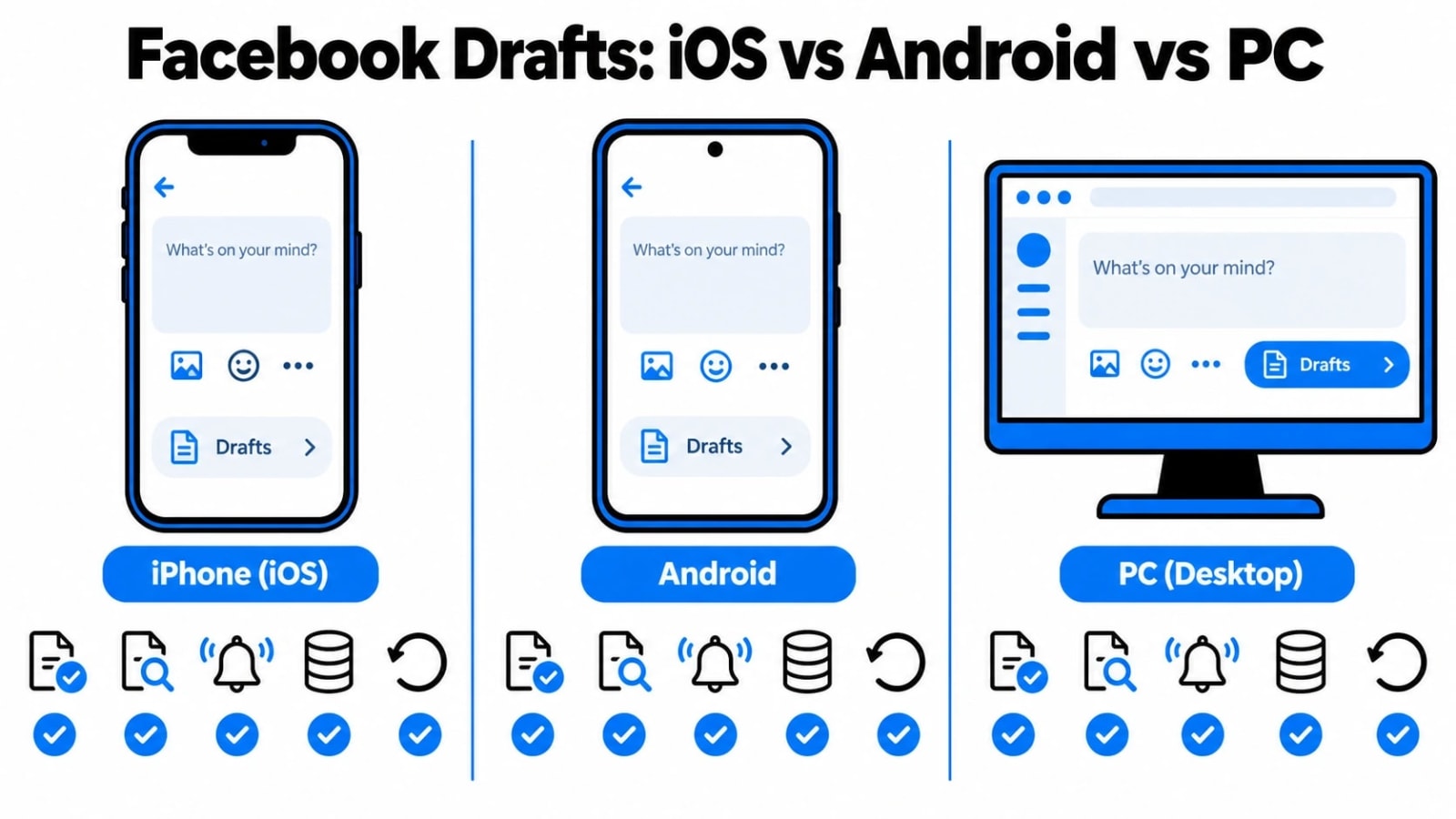
การทำความเข้าใจความแตกต่างระหว่างวิธีที่แต่ละแพลตฟอร์มจัดการกับฉบับร่างจะช่วยให้คุณเลือกแนวทางที่เหมาะสมสำหรับนิสัยการโพสต์ของคุณ ทั้ง iOS และ Android ใช้ที่เก็บข้อมูลในเครื่องของแอปบนอุปกรณ์เคลื่อนที่เพื่อเก็บร่างไว้ชั่วคราว ซึ่งทำให้มีความคงอยู่นานกว่าร่างบนเบราว์เซอร์บนเดสก์ท็อปเล็กน้อย อย่างไรก็ตาม ไม่มีแพลตฟอร์มมือถือใดที่จะบันทึกฉบับร่างได้อย่างไม่มีกำหนด และทั้งสองแพลตฟอร์มมีความเสี่ยงที่ข้อมูลจะสูญหายหากแอปปิดสนิทหรือหากอุปกรณ์มีหน่วยความจำเหลือน้อย ในทางตรงกันข้าม ประสบการณ์การใช้งานเดสก์ท็อปนั้นเปราะบางที่สุดในสามประการสำหรับการโพสต์ทั่วไป แต่มีประสิทธิภาพมากที่สุดสำหรับการจัดการเพจผ่านเครื่องมือเฉพาะ เช่น Meta Business Suite
ตารางด้านล่างแจกแจงความแตกต่างหลักๆ เพื่อให้คุณสามารถเห็นสิ่งที่คาดหวังในแต่ละแพลตฟอร์มได้อย่างรวดเร็ว
| คุณลักษณะ | iOS (iPhone/iPad) | แอนดรอยด์ | พีซี (เบราว์เซอร์เดสก์ท็อป) |
|---|---|---|---|
| ที่แบบร่างปรากฏ | ผู้แต่งโพสต์ภายในฟีดข่าว | ผู้แต่งโพสต์ภายในฟีดข่าว | ผู้แต่งโพสต์ภายในบนฟีดหน้าแรก (เซสชันเท่านั้น) |
| ความคงอยู่ของร่าง | ระยะสั้น ภายในเซสชันของแอป | ระยะสั้น ภายในเซสชันของแอป | ระยะสั้นมาก เซสชันเบราว์เซอร์เท่านั้น |
| แพ้เมื่อปิดแอป | มักจะใช่ | มักจะใช่ | ใช่ เกือบตลอดเวลา |
| โฟลเดอร์ร่างเฉพาะ (โพสต์ส่วนตัว) | ไม่ | ไม่ | เลขที่ |
| โฟลเดอร์ร่างเฉพาะ (โพสต์บนเพจ) | ผ่านแอป Meta Business Suite | ผ่านแอป Meta Business Suite | ผ่านทาง Meta Business Suite หรือ Creator Studio |
| ดีที่สุดสำหรับการบันทึกร่างที่เชื่อถือได้ | Meta Business Suite (หน้า) | Meta Business Suite (หน้า) | Meta Business Suite หรือสตูดิโอผู้สร้าง |
| ความเสี่ยงต่อการสูญเสียร่าง | ปานกลาง | ปานกลาง | สูง |
ประเด็นสำคัญจากการเปรียบเทียบนี้คือ Facebook ไม่มีระบบร่างที่เป็นสากลและเชื่อถือได้สำหรับโพสต์ส่วนตัวในทุกแพลตฟอร์ม ไม่ว่าคุณจะใช้ iPhone, Android หรือเบราว์เซอร์บนเดสก์ท็อป แบบร่างสำหรับโพสต์บนฟีดปกติจะไม่เป็นทางการและสูญหายได้ง่าย วิธีที่เชื่อถือได้มากที่สุดในการบันทึกเนื้อหาฉบับร่างบน Facebook คือผ่าน Meta Business Suite ซึ่งออกแบบมาสำหรับเพจมากกว่าโปรไฟล์ส่วนตัว การทราบถึงความแตกต่างนี้จะช่วยให้คุณพ้นจากช่วงเวลาที่น่าหงุดหงิดจากการสูญเสียงาน และช่วยให้คุณวางแผนขั้นตอนการโพสต์ได้อย่างมีประสิทธิภาพมากขึ้น
เหตุใดร่าง Facebook ของคุณจึงอาจหายไป และจะแก้ไขได้อย่างไร
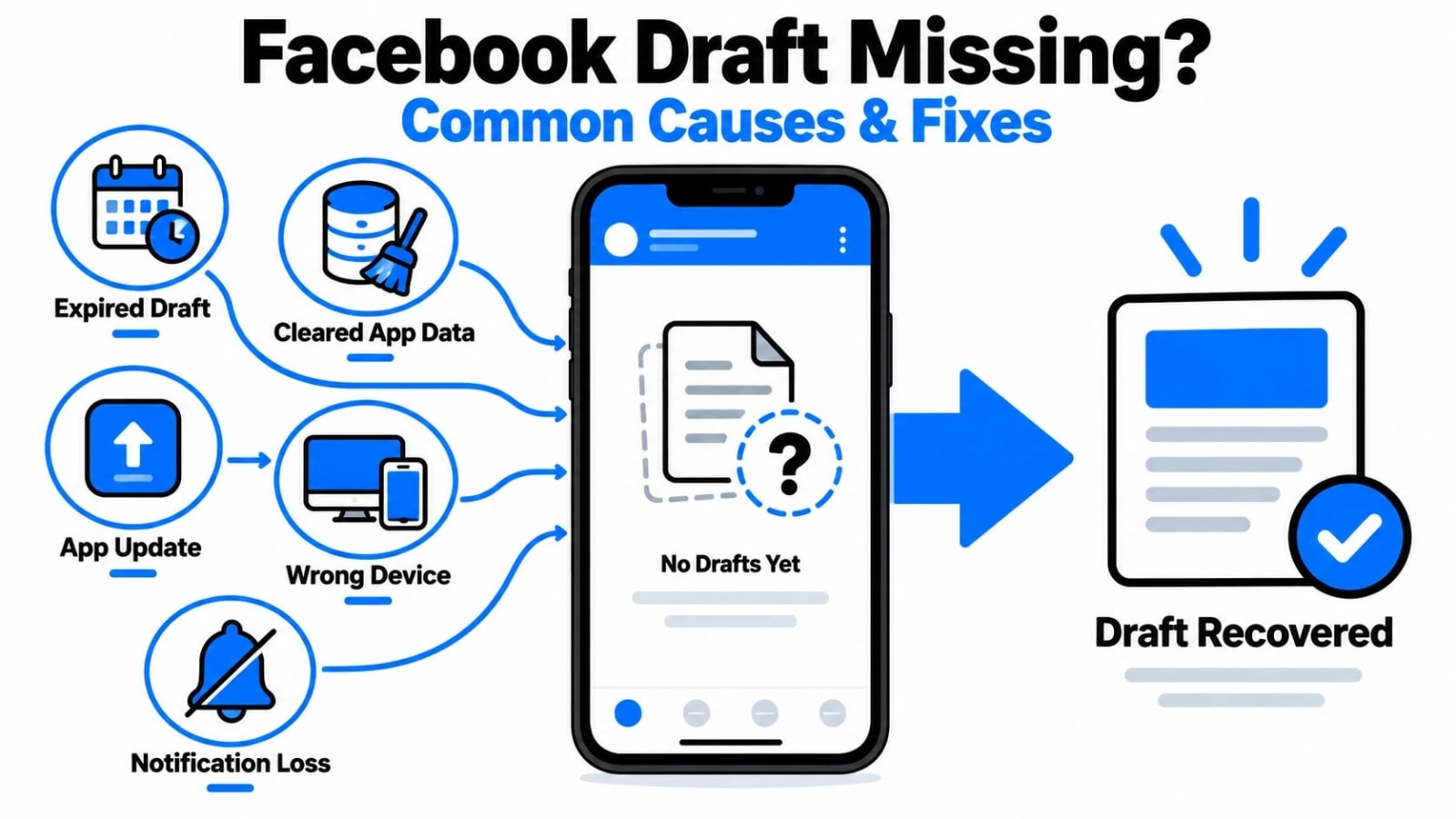
คุณใช้เวลาเขียนโพสต์ ถูกขัดจังหวะ และคิดว่า Facebook จะบันทึกไว้ดูในภายหลัง แต่ตอนนี้ร่างหายไปแล้ว สิ่งนี้เกิดขึ้นบ่อยกว่าที่คุณคาดไว้ และมีสาเหตุทั่วไปหลายประการที่อยู่เบื้องหลัง การทำความเข้าใจว่าเหตุใดร่างจดหมายจึงหายไปสามารถช่วยคุณคลายความยุ่งยากได้มากในครั้งถัดไปที่คุณต้องเรียกค้นกลับคืน
สาเหตุทั่วไปที่ทำให้ร่างจดหมายของ Facebook หายไป
- คุณปิดโพสต์โดยไม่บันทึก:Facebook จะบันทึกฉบับร่างเฉพาะเมื่อคุณแตะ "บันทึกฉบับร่าง" อย่างชัดเจนในข้อความยืนยัน หากคุณละทิ้งข้อความแจ้งนั้นหรือแตะ "ทิ้ง" โพสต์นั้นจะหายไปอย่างถาวร
- แอปข���ดข้องก่อนบันทึก:หากแอพ Facebook ขัดข้องระหว่างการจัดองค์ประกอบภาพ ร่างนั้นแทบจะไม่สามารถกู้คืนได้ ต่างจากโปรแกรมประมวลผลคำบางตัว Facebook ไม่บันทึกร่างอัตโนมัติแบบเรียลไทม์
- ออกจากระบบหรือเปลี่ยนบัญชี:ฉบับร่างจะเชื่อมโยงกับบัญชีเฉพาะที่สร้างขึ้น หากคุณเปลี่ยนโปรไฟล์หรือออกจากระบบ ร่างจากเซสชันนั้นอาจไม่ปรากฏภายใต้การเข้าสู่ระบบปัจจุบันของคุณ
- เวอร์ชันแอปที่ล้าสมัย:แอพ Facebook เวอร์ชันเก่าบางครั้งไม่สามารถแสดงแบบร่างได้อย่างถูกต้องหรือสูญเสียไปในระหว่างการอัพเดต การทำให้แอปเป็นปัจจุบันจะช่วยลดความเสี่ยงนี้ได้อย่างมาก
- ฉบับร่างบันทึก��ว้ในอุปกรณ์อื่น:ฉบับร่างที่สร้างบน iPhone ของคุณจะไม่ปรากฏบนอุปกรณ์ Android หรือเบราว์เซอร์เดสก์ท็อปของคุณโดยอัตโนมัติ แบบร่างจะถูกจัดเก็บไว้ในเครื่องหรือภายในบริบทเซสชันเดียว
- โพสต์ถูกเผยแพร่โดยไม่ได้ตั้งใจ:บางครั้งการแตะผิดที่อาจทำให้โพสต์เกิดขึ้นก่อนที่คุณจะตั้งใจ ตรวจสอบไทม์ไลน์โปรไฟล์ของคุณเพื่อดูว่ามีการเผยแพร่โดยที่คุณไม่รู้ตัวหรือไม่
แก้ไขให้ลองทันที
- อัปเดตแอป Facebook:เปิด App Store หรือ Google Play Store แล้วตรวจสอบการอัปเดตที่รอดำเนินการ ติดตั้ง รีสตาร์ทแอป และตรวจสอบฉบับร่างของคุณอีกครั้ง
- ล้างแคชของแอป (Android):ไปที่การตั้งค่า ค้นหา Facebook ใต้แอพ แตะพื้นที่เก็บข้อมูล จากนั้นล้างแคช การดำเนินการนี้จะบังคับให้แอปโหลดข้อมูลใหม่ ซึ่งบางครั้งอาจแสดงร่างที่ขาดหายไป
- ลองใช้อุปกรณ์หรือเบราว์เซอร์อื่น:หากคุณบันทึกร่างจดหมายไว้บนเดสก์ท็อป ให้เข้าสู่ระบบ Facebook บนเบราว์เซอร์พีซีของคุณ และทำเครื่องหมายที่ช่อง "คุณคิดอะไรอยู่" กล่องโดยตรงจากโปรไฟล์หรือฟีดข่าวของคุณ
- ตรวจสอบส่วน "เพจของคุณ":หากคุณกำลังร่างโพสต์สำหรับเพจ Facebook แทนที่จะเป็นโปรไฟล์ส่วนตัวของคุณ แบบร่างนั้นจะอยู่ในโฟลเดอร์ร่างของเพจนั้น ไม่ใช่บัญชีส่วนตัวของคุณ
- ออกจากระบบแ��ะเข้าสู่ระบบอีกครั้ง:การรีเฟรชเซสชันแบบธรรมดาบางครั้งสามารถกู้คืนแบบร่างที่หายไปเนื่องจากข้อผิดพลาดในการซิงค์
การกู้คืนแบบร่าง: สิ่งที่ Facebook ทำได้และไม่สามารถทำได้
| สถานการณ์ | ร่างสามารถกู้คืนได้หรือไม่? | สิ่งที่ต้องทำ |
|---|---|---|
| แตะ "บันทึกฉบับร่าง" ก่อนออก | ใช่ | ทำตามขั้นตอนการดึงข้อมูลฉบับร่างมาตรฐานสำหรับอุปกรณ์ของคุณ |
| แตะ "ทิ้งโพสต์" | ไม่ | โพสต์ถูกลบอย่างถาวร เขียนใหม่ตั้งแต่ต้น |
| แอปขัดข้องก่อนบันทึก | ไม่น่าเป็นไปได้ | อัปเดตแอปและตรวจสอบหนึ่งครั้ง หากไม่มีให้เขียนใหม่ |
| ฉบับร่างบันทึกไว้ในอุปกรณ์อื่น | บางส่วน | เข้าสู่ระบบ Facebook บนอุปกรณ์เ��รื่องเดิมเพื่อค้นหา |
| โพสต์ถูกเผยแพร่โดยไม่ได้ตั้งใจ | ใช่ เป็นโพสต์สด | ตรวจสอบไทม์ไลน์โปรไฟล์ของคุณและลบหรือแก้ไข |
นิสัยอย่างหนึ่งที่ควรค่าแก่การสร้างคือการคัดลอกข้อความในโพสต์ของคุณก่อนที่จะปิดหน้าต่างเขียนข้อความใดๆ บน Facebook ใช้เวลาสองวินาทีและทำหน้าที่เป็นการสำรองข้อมูลด้วยตนเองซึ่งไม่มีข้อผิดพลาดของแอปใดที่สามารถลบได้
บทสรุป
การค้นหาร่าง Facebook ของคุณนั้นไม่ซับซ้อนเมื่อคุณรู้ว่าจะต้องดูที่ไหนในแต่ละแพลตฟอร์ม บน iOS และ Android ร่างจดหมายที่คุณบันทึกไว้จะอยู่ในตัวผู้แต่งโพสต์ โดยรออยู่หลังการแตะง่ายๆ บนเดสก์ท็อป กล่องผู้แต่งเดียวกันจะเก็บฉบับร่างของคุณทันทีที่คุณกลับมา ข้อแตกต่างที่สำคัญระหว่างอุปกรณ์ต่างๆ ก็คือฉบับร่างไม่ซิงค์แบบสากล ดังนั้นควรกลับไปยังอุปกรณ์ที่คุณเริ่มเขียนตั้งแต่แรกเสมอ หากฉบับร่างหายไป การอัปเดตแอปอย่างรวดเร็วหรือการล้างแคชมักจะนำกลับมาอีกครั้ง
นิสัยที่ดีที่สุดในระยะยาวคือการปฏิบัติต่อข้อความแจ้ง "บันทึกร่าง" เสมือนเป็นการกระทำโดยเจตนามากกว่าที่จะคิดในภายหลัง แตะทุกครั้งที่คุณก้าวออกจากโพสต์ที่ยังเขียนไม่เสร็จ สำหรับใครก็ตามที่จัดการเพจ Facebook หลายเพจหรือใช้งานโซเชียลมีเดียโดยเป็นส่วนหนึ่งของการตลาดดิจิทัลกลยุทธ์การทำความเข้าใจว่ารายละเอียดแพลตฟอร์มขนาดเล็กเหล่านี้ทำงานอย่างไร ช่วยให้การสร้างเนื้อหาในแต่ละวันราบรื่นขึ้นและเครียดน้อยลง หากคุณต้องการเคล็ดลับที่เป็นประโยชน์เพิ่มเติมในการใช้เครื่องมือโซเชียลมีเดียให้เกิดประโยชน์สูงสุด โปรดอ่านคำแนะนำที่มีอยู่ในเว็บไซต์ของ Shahid Shahmiri
คำถามที่พบบ่อย
ฉันสามารถเข้าถึงร่าง Facebook ที่ฉันบันทึกไว้ใน iPhone จากโทรศัพท์ Android ได้หรือไม่
ไม่ ร่าง Facebook จะไม่ซิงค์กับอุปกรณ์ต่างๆ ฉบับร่างที่บันทึกไว้บน iPhone ของคุณจะยังคงอยู่ในเซสชั่นของแอพนั้นบนอุปกรณ์นั้น หากต้องการเข้าถึง ให้เปิด Facebook บน iPhone เครื่องเดียวกับที่คุณเขียนโพสต์ในตอนแรก แล้วแตะกล่องผู้แต่งเพื่อค้นหาร่างจดหมายที่บันทึกไว้ซึ่งรออยู่ที่นั่น
Facebook จะเก็บร่างจดหมายที่บันทึกไว้นานเท่าใดก่อนที่จะลบออก
Facebook ไม่ได้เผยแพร่เวลาหมดอายุแบบร่างอย่างเป็นทางการ ในทางปฏิบัติ ฉบับร่างอาจหายไปหลังจากการอัปเดตแอป ล้างแคช หรือไม่มีการใช้งานเป็นระยะเวลานาน เพื่อความปลอดภัย ให้ถือว่าฉบับร่างเป็นแบบชั่วคราวและเผยแพร่หรือคัดลอกข้อความภายในไม่กี่วันหลังจากบันทึกเพื่อหลีกเลี่ยงการสูญเสียงานของคุณ
เหตุใดฉันจึงไม่เห็นตัวเลือก "บันทึกฉบับร่าง" เมื่อปิดโพสต์บน Facebook
ข้อความ "บันทึกฉบับร่าง" จะปรากฏขึ้นเฉพาะเมื่อมีข้อความหรือสื่อจริงอยู่ภายในผู้แต่งเท่านั้น หากช่องว่างเปล่า Facebook จะข้ามข้อความแจ้ง ตรวจสอบให้แน่ใจว่าคุณได้พิมพ์อะไรบางอย่างก่อนที่จะปิดหน้าต่าง หากข้อความแจ้งยังคงไม่ปรากฏขึ้น การอัพเดตแอพ Facebook เป็นเวอร์ชันล่าสุดมักจะแก้ไขปัญหาได้
แบบร่างเพจ Facebook ปรากฏในที่เดียวกับแบบร่างโปรไฟล์ส่วนตัวหรือไม่
ไม่ พวกมันจะถูกจัดเก็บแยกต่างหาก แบบร่างที่สร้างขึ้นขณะโพสต์เป็นเพจ Facebook จะอยู่ภายในผู้แต่งของเพจนั้น ไม่ใช่ผู้แต่งโปรไฟล์ส่วนตัวของคุณ หากต้องการค้นหาแบบร่างของเพจ ให้สลับไปที่เพจนั้น เปิดผู้แต่งโพสต์จากไทม์ไลน์ของเพจ จากนั้นแบบร่างที่บันทึกไว้จะปรากฏขึ้นที่นั่นโดยอัตโนมัติ
มีโฟลเดอร์หรือเมนูร่างเฉพาะในแอพ Facebook หรือไม่
ไม่ Facebook ไม่มีโฟลเดอร์ร่างแบบสแตนด์อโลนในเมนูหรือการตั้งค่า เข้าถึงแบบร่างได้ผ่านทางกล่องโพสต์เขียนบนโปรไฟล์หรือเพจของคุณเท่านั้น การแตะที่ผู้แต่งนั้นจะแสดงร่างจดหมายที่บันทึกไว้ล่าสุดของคุณโดยอัตโนมัติ ซึ่งเป็นสาเหตุที่ทำให้ฟีเจอร์นี้พลาดได้ง่ายหากคุณไม่รู้ว่าจะต้องดูที่ไหน